Using Images
If there is an existing graphic / logo (story time, Studio NPL, etc.), use the established image as the thumbnail image in Bedework. Please don’t create a new image.
Use the Image Library by going to Click here to choose from the library of images.
-
Use the copy graphic to copy the image URL path.
-
Use your keyboard shortcut to paste (CTRL+V) the path in the table into the Image URL, Thumbnail URL, and Alt Text fields. The URL paths links will begin
/public/img/. -
Alt Text is legally required for all images. Patrons using screen readers hear this text read aloud. This should be a description of the image pictured, not just the name of the event.
- If there is not an existing graphic, create an image one to upload.
- Calendar approvers review the image.
- Images submitted with events may be removed, remade, or replaced, at the approver’s discretion.
- Accepted images are addded to the Images Library accessible from the Bedework entry form for re-use later.
Size and Text Specifications
- Maximum width: 400 pixels
- Maximum height: 600 pixels
- Maxiumum fil size: 100 KiloByts (KB)
Images are required for the following events
These, and others, are stored in image libary.
- Be Well at NPL
- Book Clubs
- Mental Health Outreach
- Office of Homeless Services
- Seed Exchange
- Story Time
Finding Images
- For existing logos / icons, see Bedework Image URLs
- For book cover and movie posters, see the Library Catalog
- To find new images, see Finding Copyright Friendly Images
Resizing an Image (on a Microsoft Windows PC)
- Open MS Paint
- Open the image you want to resize, or copy-and-paste an image
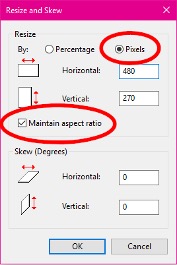
- Hit the resize button at the top

- Click the button for "Pixels." Check "Maintain aspect ratio." Type what size you want the image to be, and click “OK.”
- Save the image as a .png file.